Great question! When you’re starting to work in digital art, layers can be incredibly confusing to start out with. They seem almost like magic… but what are they, really?
Personally I also work in Medibang, so I think these screenshots will be helpful.
To begin with, let’s take this picture of a zebra I drew a little while ago:
It seems like there’s a LOT going on here. But actually, layers make it easier than ever to make your drawings feel nice and clean digitally. Lots of programs also have specialized tools to help you color effortlessly – and it’s VERY different from the traditional method of being careful to not color outside the lines.
First of all, let’s take a look at layers. What ARE layers? They are… well… a way to organize your art, for a start. Anything on the top layer will be BOSS and will (generally) be on top of everything else. That’s why most artists use the top layer for lineart, as you yourself said.
Artists can use SO MANY LAYERS. Like, some artists use 100+ layers in one piece. But that’s a lot, so let’s start with… 3. Just 3 simple layers. For example…
Now, let’s say you have this lineart and you want to color it. The color will go on the bottom, so that it doesn’t interfere with the lineart layer. But how do you color it? Well, you COULD do the very slow and tedious process of going over it bit by bit.
But that’s honestly very tedious and no one actually likes it. It leaves a lot of room for error, and it takes forEVER.
Instead, let’s make this easier.
HOW TO COLOR USING THE SELECT TOOL!
First of all, this requires that your lineart not have gaps. That means all black lines are connected.
Second, let’s go to our color layer and make sure it’s selected (and not the lineart layer)
Next, use the magic select tool on the left hand side. It looks like a little magic wand.
Click on the empty space you WANT to color. In my case, it’ll be the scarf area. Medbang will sense the area based on the visible lineart layer, even though you are still technically on the color layer.
(you can select multiple areas, like the two little ends of the scarf, by holding down the Shift key and clicking those areas)
The next bit is a bit more technical.
With these parts selected, you COULD just use the bucket tool and fill everything in. BUT, with the way digital programs work, you might end up with a VEEEERY thin layer of white between your lineart and your colors.
So what I (and a lot of artists) do instead is manually expand that selected area by just a few pixels to make sure that border is caught in the all-encompassing COLOR CONQUEST.
To do this, just go upstairs to the ‘select’ menu and click ‘expand’. Give it a few pixels, hit enter, and THEN use a filling technique of choice. I just throw a large square over the area.
Now, I know what you’re thinking. “okay, I have the flat colors. But what if I need to add details, like shading and patterns?”
Let me introduce you to our friend…. CLIPPING!
What is clipping? I thought you might ask. Well, consider this scenario. You have your color layer, your lineart layer – and between them – your shading layer. You want to shade stuff, but again, you might have to go through and color things bit by bit so as to make sure nothing goes outside of the lineart.
BUT look there! What’s that checkbox up at the top? It’s a bird! It’s a plane! It’s…. CLIPPING!
Go ahead and check that box – and it will trap your Shading layer in a prison…. a prison of the color layer!
Basically, clipping means you lock the layer onto the layer directly underneath it, and the shading will ONLY affect whatever exists below it. If you didn’t color outside the lines… the shading will also not cross that border.
Voila!
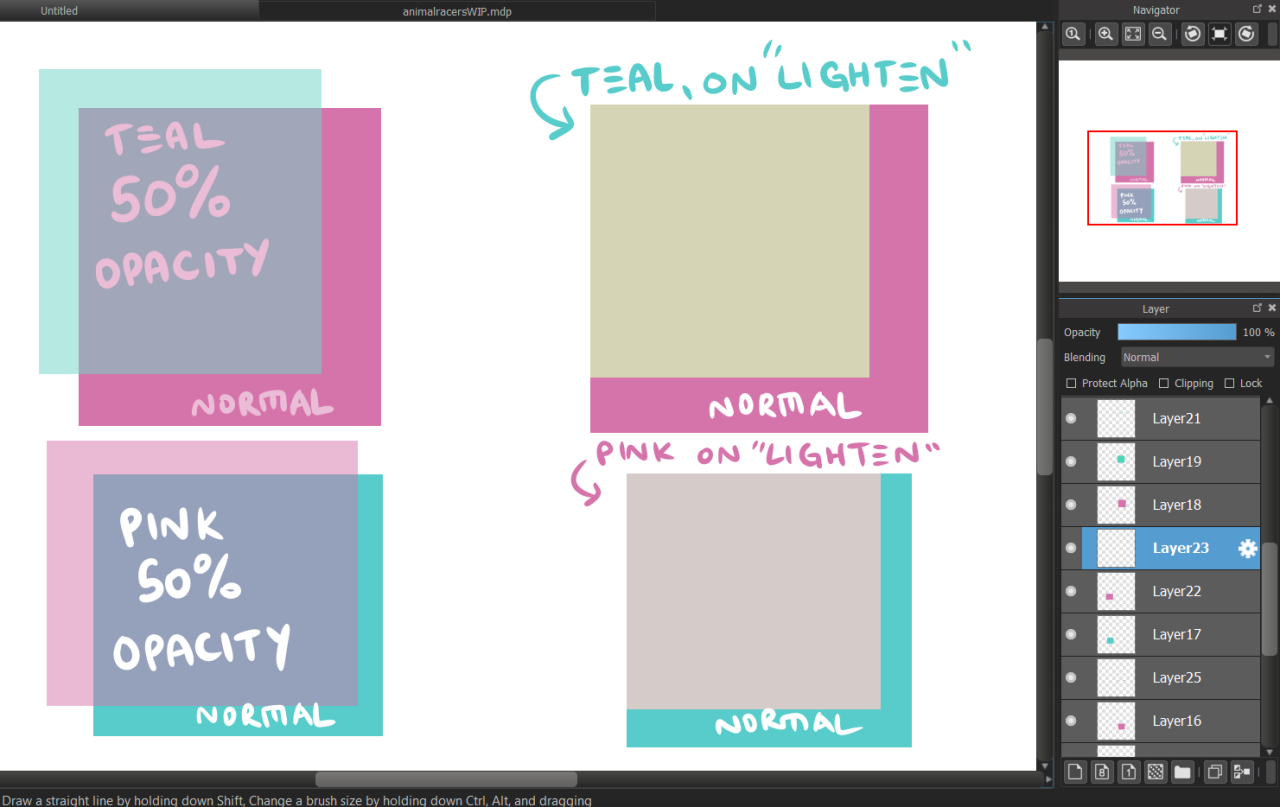
Now, layers are MUCH much more than this. We could probably have an entire class just about layers. However, I recommend just playing around and discovering as much as you can on your own. Digital art is a lot of fun, and opens many doors. You can allow layers to interact with each other in many crazy ways – there’s settings like “Lighten” and “Multiply” and “Overlay” that all have different functions and allow you to play with colors quickly and easily for your art.
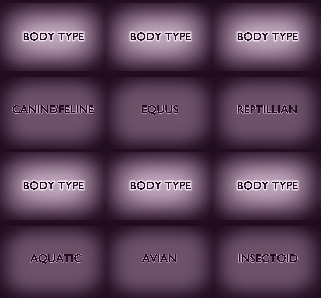
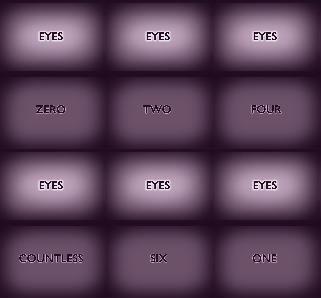
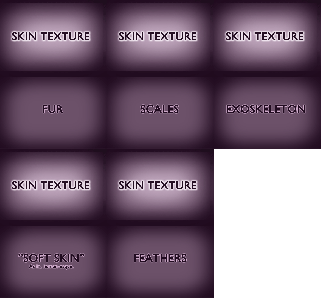
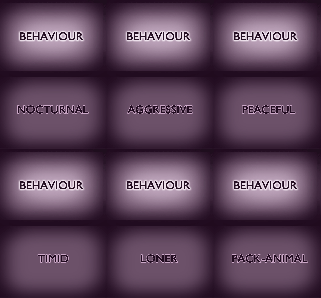
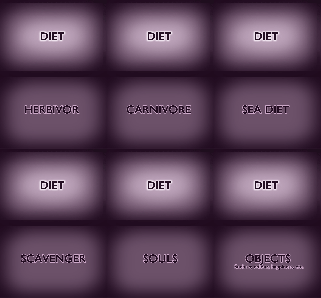
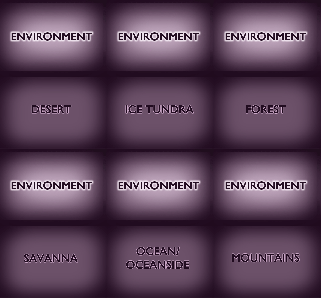
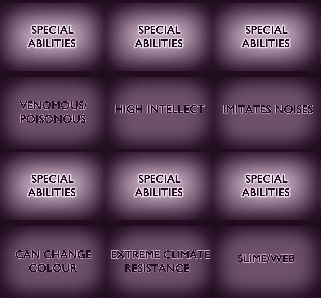
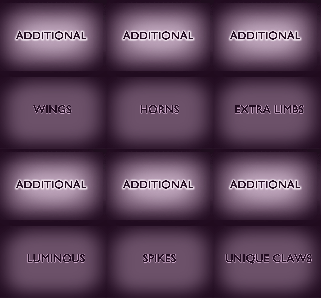
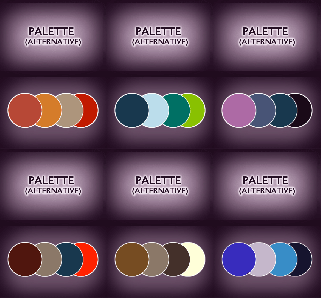
I had a sudden strike of inspiration again for making a generator! Hope someone finds it useful 🙂 Drag or screenshot!
Note: I encourage to pick 2-3 times from the additional/special abilities squares. Also to just take the body type square as a inspiration and not super strictly.




































 💜🎵GlowLite🎵💜